BackupBliss WordPress Backup Plugin – A Review
Disclosure: I received a license for this plugin free of charge from Inisev in exchange for an honest review. All opinions expressed are my own.
Backups – everyone forgets about backups until it’s too late. The first time a hard drive fails and you realise there’s no way to get back what was on it or a server crashes and all those years of blog posts are gone. Or even worse, you think you’ve got a backup, but when you try to restore it, you discover it hasn’t backed up half of what you’d expected.
It’s something that’s often overlooked as part of hosting a blog; it’s either completely ignored, or assumed that it’s taken care of as part of the overall backup strategy for the server.
Recently, I was contacted by the guys at Inisev, asking if I’d be interested in reviewing their Backup Plugin for WordPress, BackupBliss.
Inisev make a number of interesting WordPress plugins including Social Media Icons, URL Redirections, for quickly copying & deleting posts and TasteWP.com that allows quick and easy setup of WordPress instances without needing a dedicated server..
BackupBliss Backup
The BackupBliss Plugin provides backup, content migration and site restoration in one pair of plugins – one the free version, and a separate premium version.
One of the main features of BackupBliss is that the plugin comes with 1 GB of storage for backups as part of the free level.
Testing
To test the plugin for this review, I setup a new installation of WordPress with a subset of the posts from my main site. I’m not sure that my site stuarttevendale.com would fit into the free tier of storage, and I also wanted to test this on something that was disposable, so that I could test how well the restore option worked.
So, how does it all work?
Setup is pretty simple – just install the plugin, like most other WordPress plugins, and set up an account for the free storage. BackupBliss supports a number of other storage options, if you already have some cloud storage including Google Drive, OneDrive and Dropbox. Installing the BackupBliss Pro plugin prompts to install the free plugin as well.
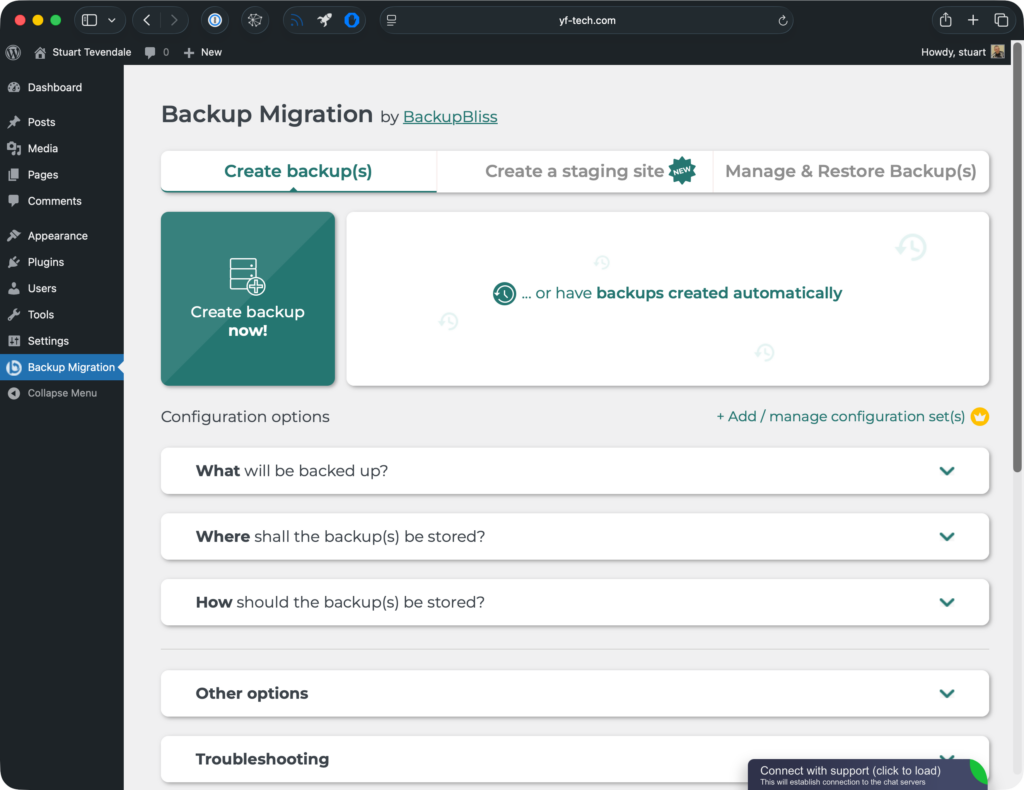
Once installed, the plugin added a ‘Backup Migration’ item to the sidebar menu where the backup options can be accessed. I then created a storage account on the backupbliss.com site.
Signing up for the BackupBliss storage was straight-forward and linking to the backup plugin was easy.
The free plugin comes with 1 GB of storage.
Backing Up
Starting a backup is very easy. There’s a button to ‘Create Backup Now’ or you can dive into the options to select exactly what is backed up, with options to exclude files over a certain size, plugins or themes. There’s also an option the exclude files based on a pattern in the filename.
Backups can also be scheduled automatically at regular intervals.
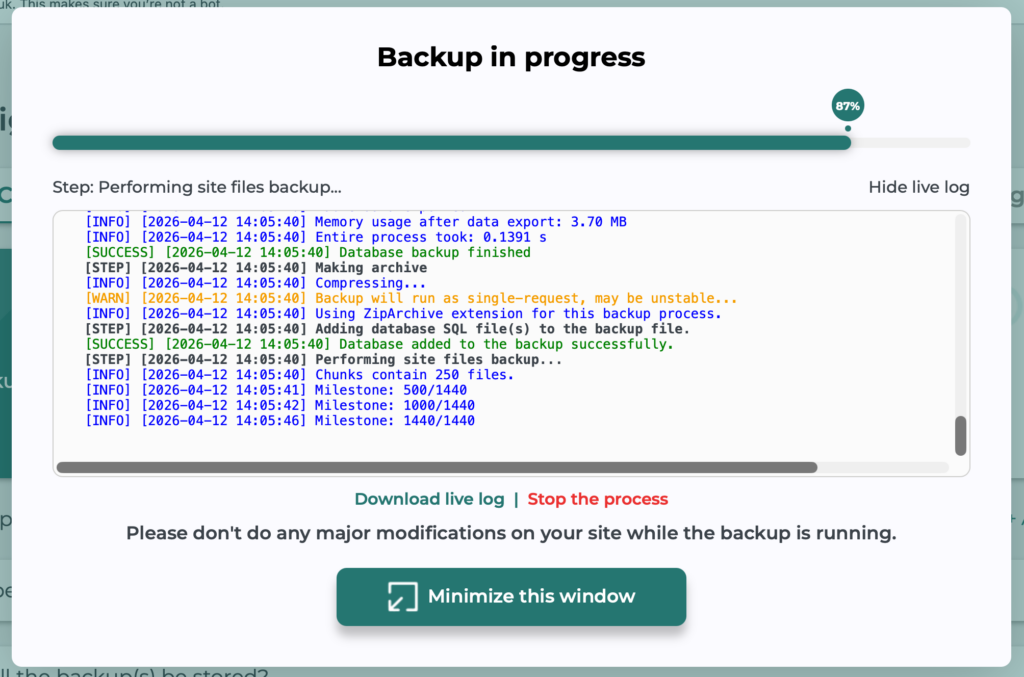
Once the backup options have been selected, there’s a dialog presented, showing the expected size of the data. Clicking ‘Create the Backup’ starts copying the backup to the selected storage. A window shows progress of the backup. Once the backup’s complete, there’s an option to download a .zip file of the backup.
I used BackupBliss’ own storage for my backup, so I can’t comment on how well other storage providers work.
Restoring
It’s all very well backing up your data, but the real test of a backup scheme is just how well it restores after a data loss.
To test how well BackupBliss works when restoring, I created a new WordPress install under a different domain. This would let me test not only the restore, but also the migration capability of the plugin.
With my bare WordPress setup, I installed the BackupBliss Pro plugin. After installation, it asked me to install the free version as well, which was to be expected.
I went to enter my license details, and, not surprisingly, was prompted to remove them from the WordPress site I’d used to create the backup, since this was a different domain. Finding the option to deregister the plugin on the site I’d used as the source of the backup took a little searching, but I found it under ‘Troubleshooting’, where there was an option to Manage the license.
After the license was transferred to the new WordPress install, it was simply a case of copying the Backup URL from the original site to the plugin on the new install and restoring the site.
After restoring onto the bare site, the WordPress install was up-and-running with all my posts.
Summary
All-in-all, I’ve got to say that BackupBliss seems to be one of the easiest to use WordPress backup solutions that I’ve used. The fact that storage is included takes a lot of the pain away from configuring a backup solution using your own storage is a definite plus. It also works very well migrating a site to different server and domain, which is useful if you need to move server providers.